

HLF Retro Video Game Console Screen Built-in 2000 Games Handheld Game Console Multiple Emulators Mini Portable Game Device MP3 MP4 Music TV Output E-Bbook Children/Men/Festivals
Couldn't load pickup availability
- 🔒 Secure Checkout
- 🚚 Fast Shipping
- 🔄 30-Day Returns
Brand Name: NONE
Supporting Language: Ukrainian
Supporting Language: Japanese
Supporting Language: French
Supporting Language: German
Supporting Language: Italian
Supporting Language: Spanish
Supporting Language: Portuguese
Supporting Language: Russian
Supporting Language: English
Supporting Language: Swedish
Supporting Language: Polish
Supporting Language: Greek
Supporting Language: Turkish
Supporting Language: Dutch
Supporting Language: Latin American Spanish
Supporting Language: Brazilian Portuguese
Supporting Language: Simplified Chinese
Supporting Language: Traditional Chinese Style
Category: Handheld Game Players
Regional Version: US Version (US)
Games included: 3000
High-concerned chemical: none
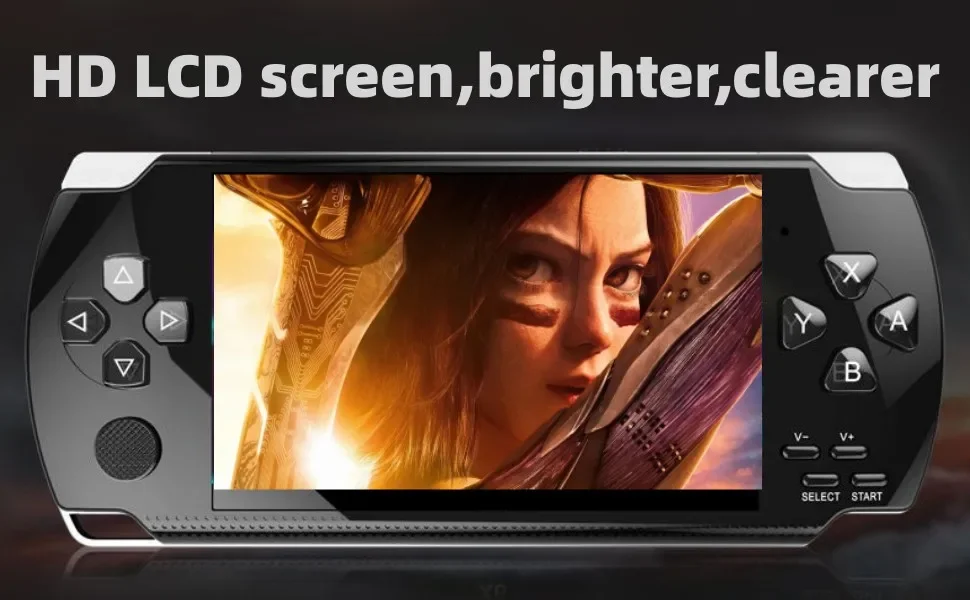
Display Size: 4.3"
Origin: Mainland China
Screen Resolution: 1920x1080
Games Type: First person
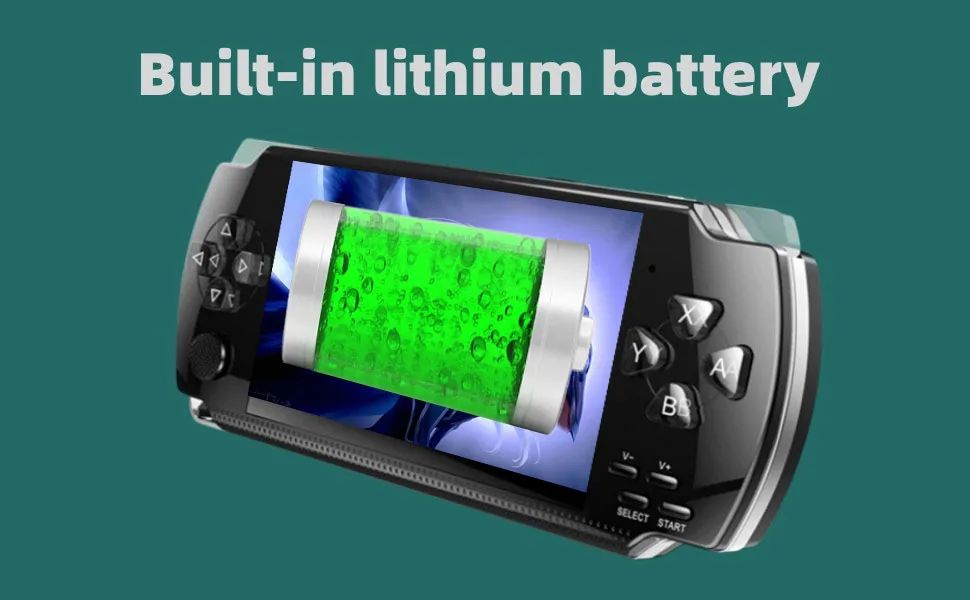
Battery Included: Yes
Product description
The following text contains some common operating instructions. If you encounter problems during use, you can refer to these contents.
How to Discover more games in consoles?
In addition to the games displayed on the screen, there are many more games built into the console. Select "Games" on the screen and press the A key to enter, you will see different folders, after entering the folder you can see more games. Users can also enter "Browser"---"GAME" to find more games.
How to quickly find the game you want to play?
Connect the game console to the computer, find the "GAME" folder of the game console on the computer, the user can create another folder in the "GAME" folder, such as"my favorite",, and then copy the game files you like to this folder. The next time you can find the game you want to play directly in this folder.
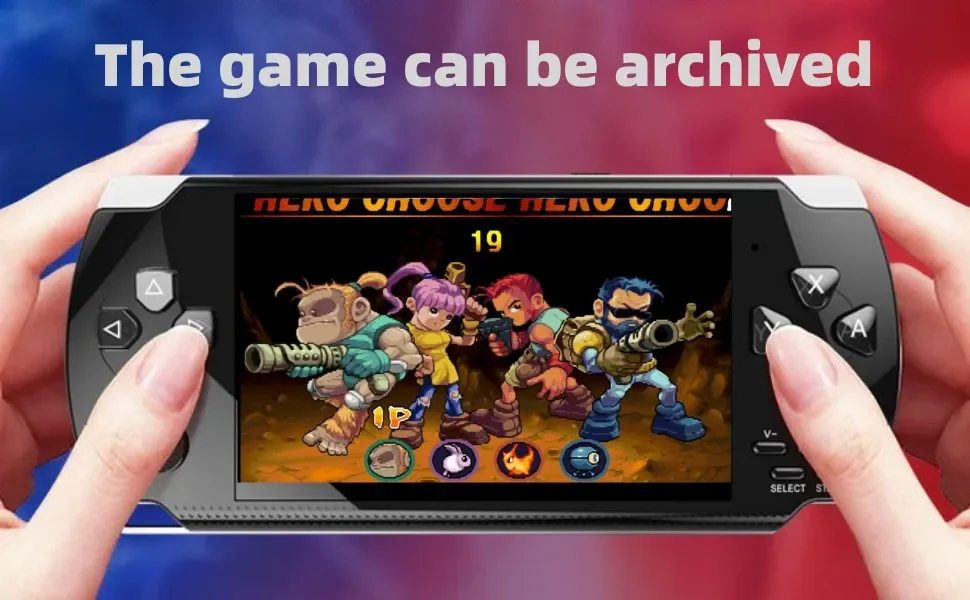
How to save the game progress?
When playing the game, press the "SELECT" key, the game menu will appear on the screen, enter "Save Game", select the progress number you want to save, and then press the A key. The game can save up to 6 progresses, and users can load different progresses to continue playing the game.
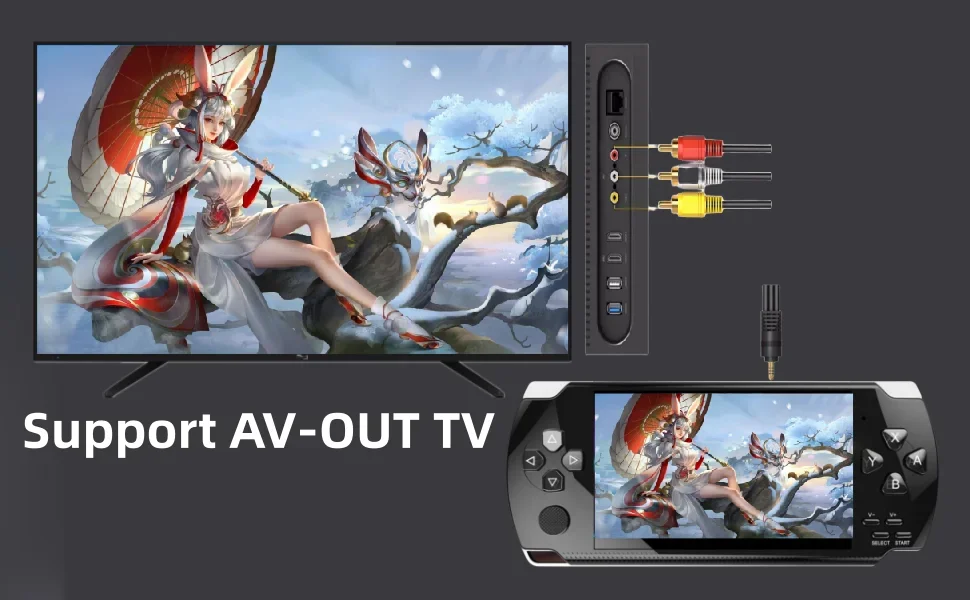
How to connect the TV?
The game console can be connected to the TV through an AV cable, one end is plugged into the game console, and the other three connectors are inserted into the TV according to the colors, and select the corresponding signal source on the TV, then select on the game console screen and press the A key to enter "Setting" ---"TV-OUT", select "PAL" or "NTSC" (according to the TV system of the user's country).
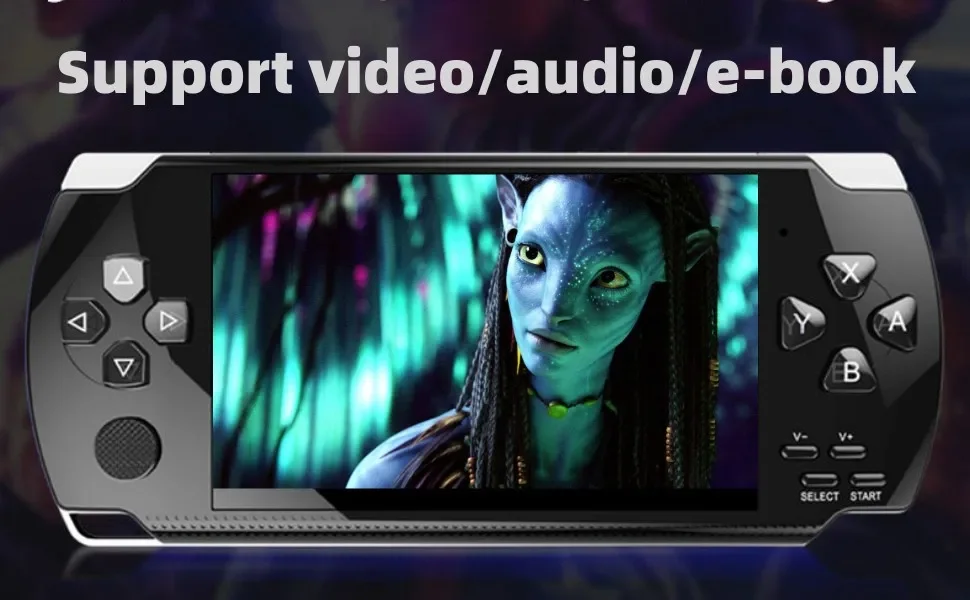
How to add/delete games/videos/music/e-books?
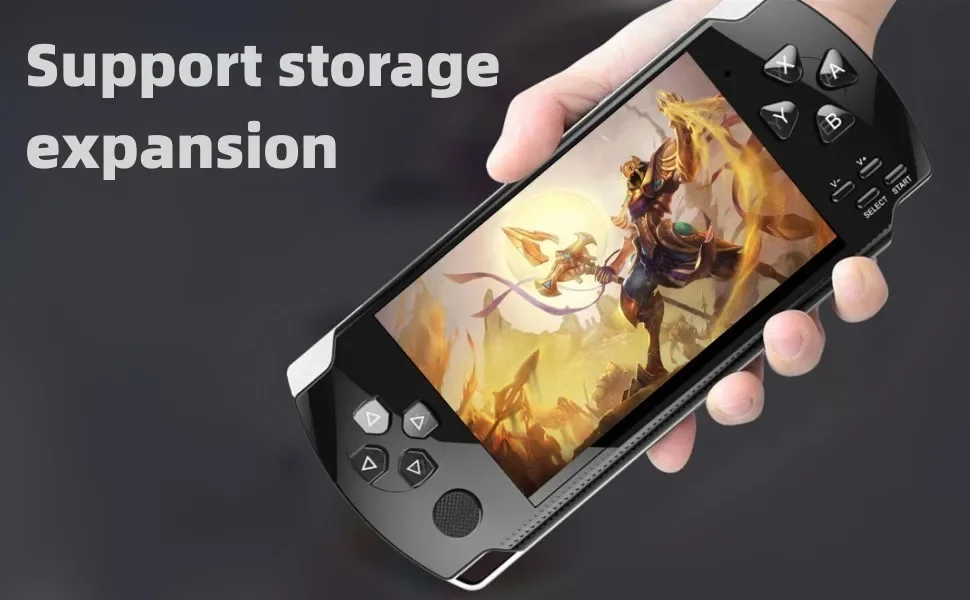
Connect the game console to the computer, find the "GAME"/"VIDEO"/"MUSIC"/"TXT" folder of the game console on the computer, copy the game/video/music/e-book files to the corresponding folder, and also Game/video/music/ebook files can be deleted from these folders.
How to download more games? What formats of games can be added?
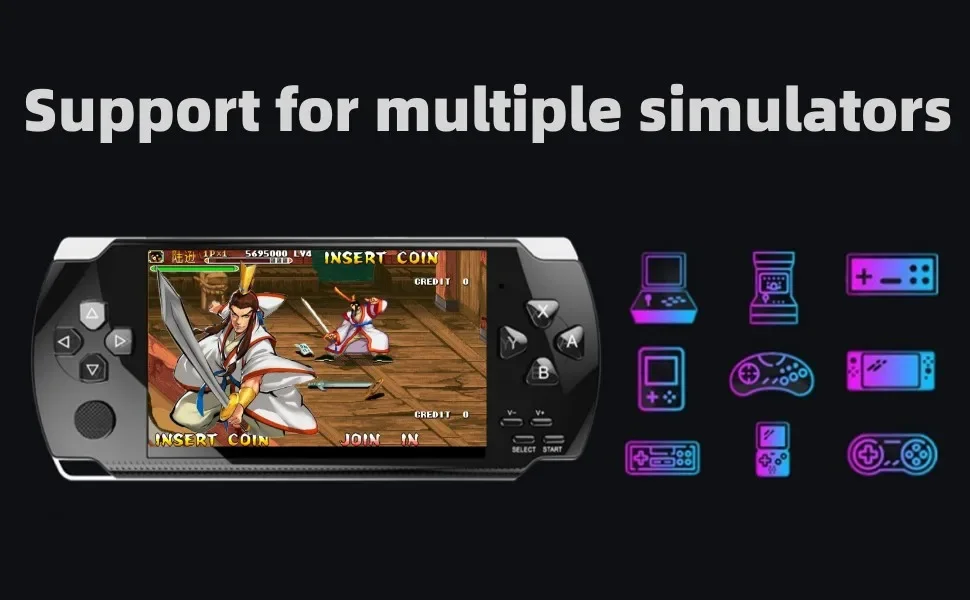
This game console cannot be connected to the Internet. Users can surf the Internet on the computer, search and download games on Google or other websites. Currently, only add the suffix name is .gba/.gbc/.gb/.nes/.sfc/.bin/ .smd game files, the game files must be copied to the ''GAME' folder in the console. If some games cannot be opened, the file information may be missing, you can delete it and download it again.
How to set the game console language?
Select "Setting"---"Language" on the screen and press A key to enter, you will see multiple languages, select the language you want,press A key to confirm. Special note: Only the menu language of the game console can be set, and the language in the game cannot be set. After the language is set, you must press the "START" key to turn off machine for the first time, otherwise the language setting will not be saved.
Can the desktop games on the screen be deleted or replaced?
The desktop games on the screen are solidified in the program and cannot be deleted or replaced.
How to backup game files?
Connect the game console to the computer, and find the "GAME" folder of the game console on the computer. We strongly recommend that users copy the "GAME" folder to the computer to prevent game files from being lost. Users can also delete unwanted games so that the console will run faster.
How to enter/pause/exit the game game?
After selecting the game, press the A button, then press the START button. Different games need to press the A button or the START button several times.
When playing the game, press the START key to pause the game; press the SELECT key and select "Exit" in the menu to exit the game.
Charging Instructions:
It is recommended to use a charger that does not exceed 5V2A for charging. The indicator light will flash while charging, and blue when fully charged. If you find that it cannot be charged, please replace the charger or charging cable.