

RF4 Stereo Trinocular Microscope 360 ° Rotation Articulating Arm Stands Large-field 4K HDMI Camera Phone Soldering PCB Repair
Couldn't load pickup availability
- 🔒 Secure Checkout
- 🚚 Fast Shipping
- 🔄 30-Day Returns
Brand Name: RF4
RF4 Model: 6555PROMAX-F019
High-concerned chemical: None
Magnification Ratio: 500X & Under
Origin: Mainland China
Battery Included: No
Theory: Stereo Microscope
Model Number: 6555promax-f09
Is Smart Device: No
Features: High Definition
Features: Handheld
Features: Portable
Certification: CE
Material: Metal
Drawtube: Trinocular
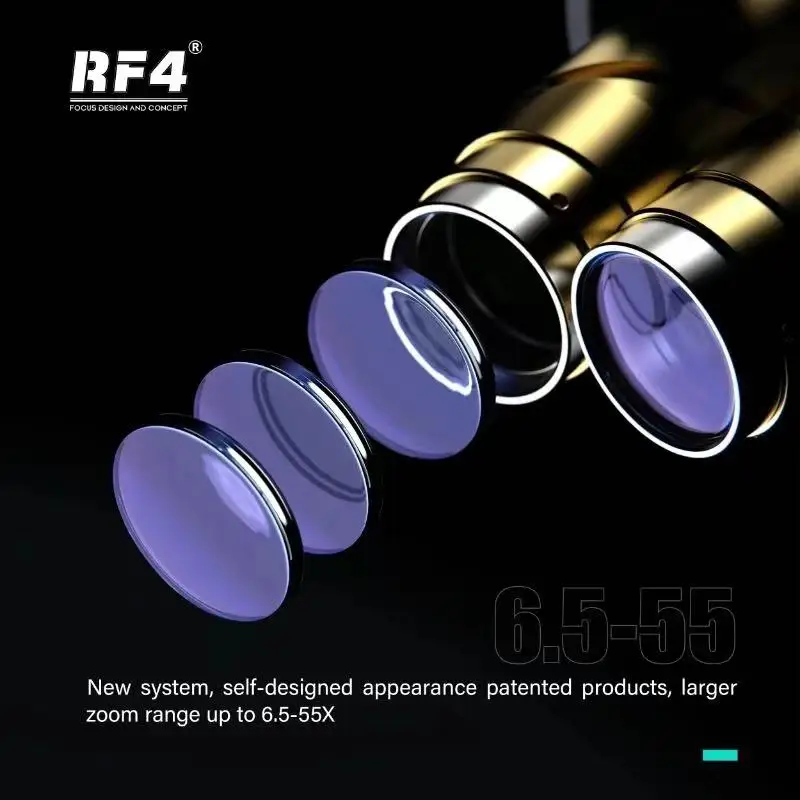
magnification: 6.5X-55X
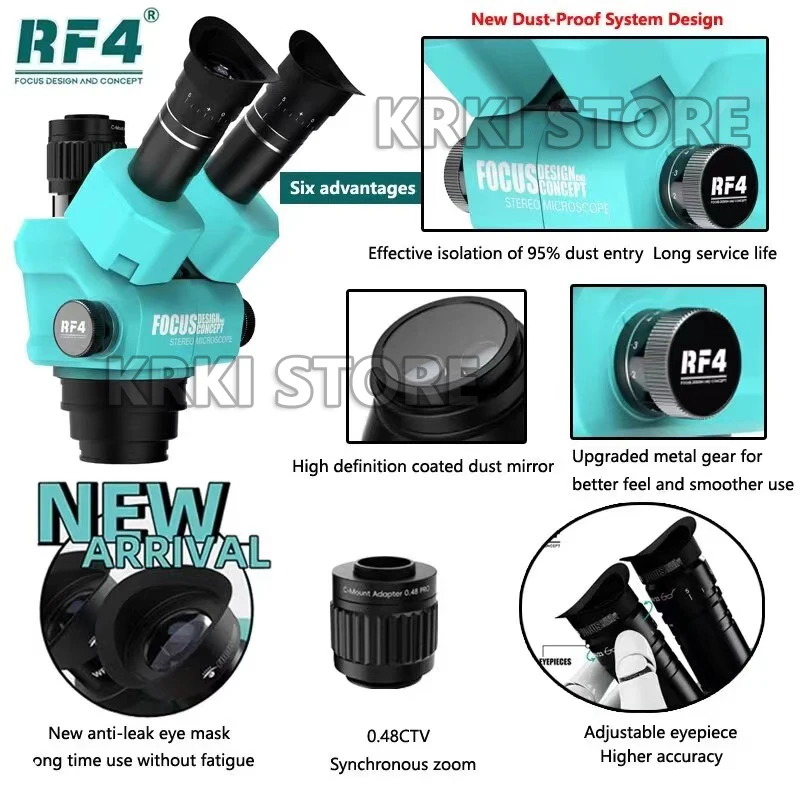
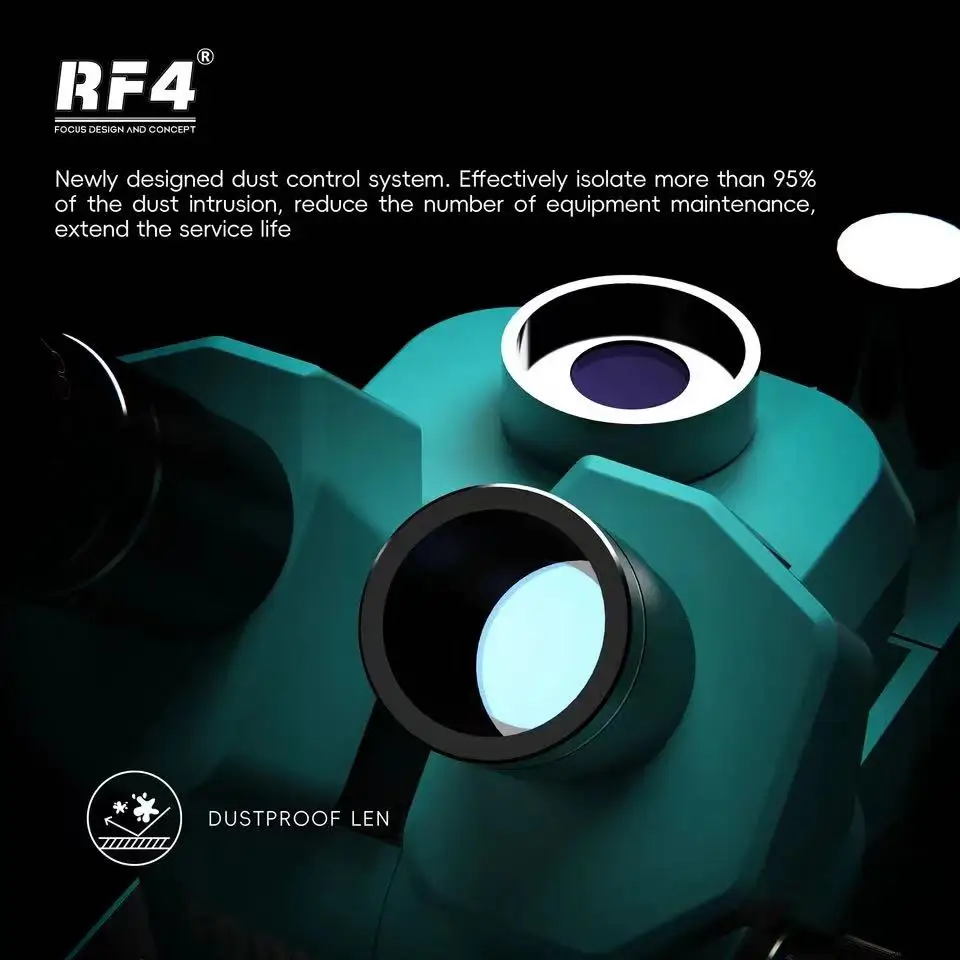
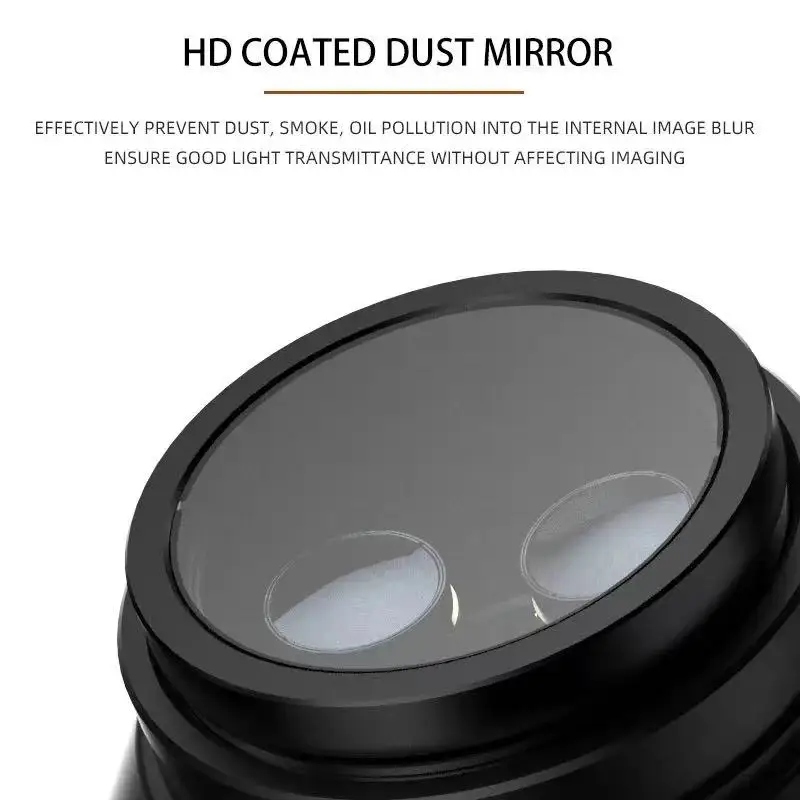
Advantages 1: NEW Dust control system design
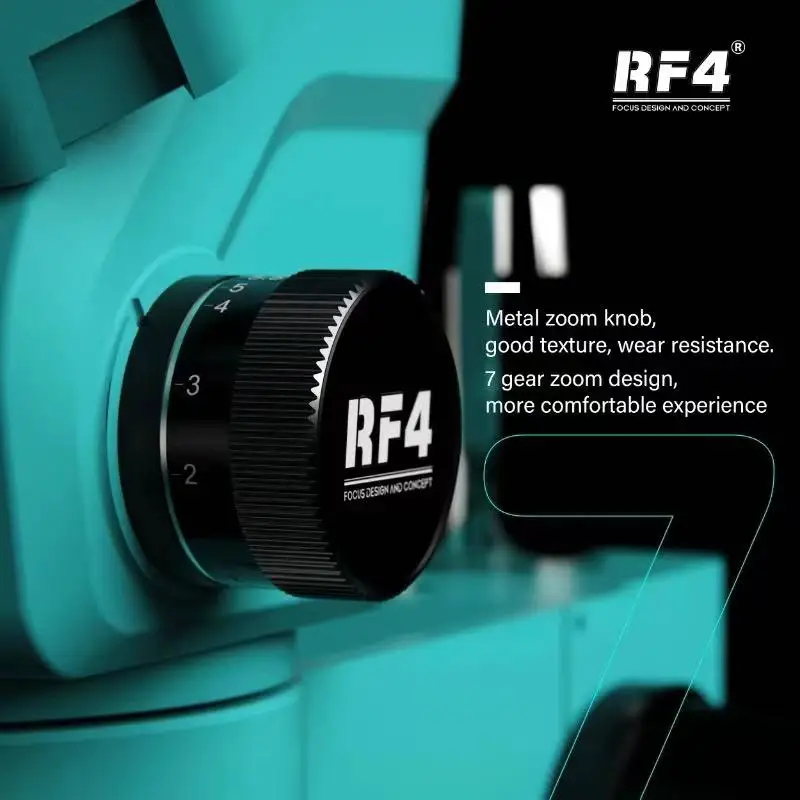
Advantages 2: 7 gears accurately lock magnification
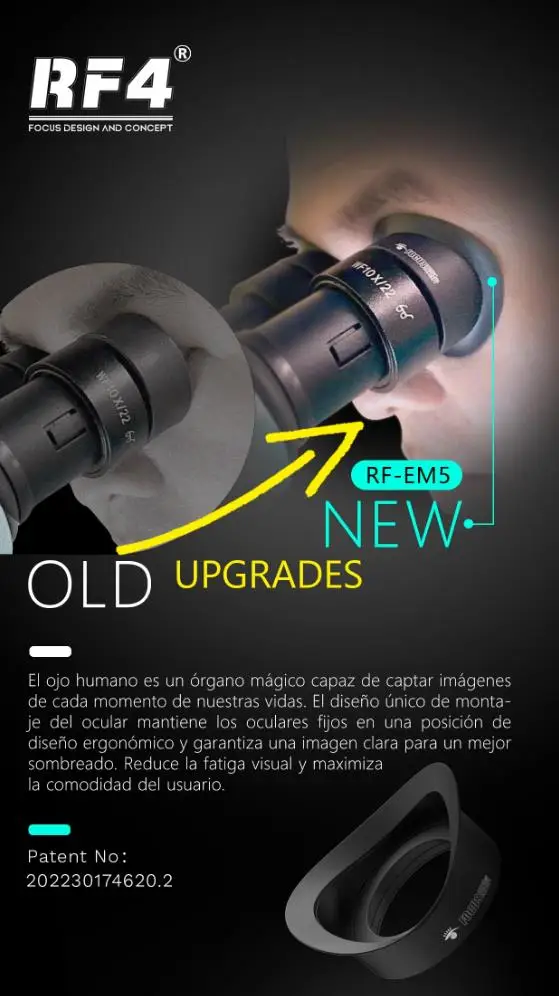
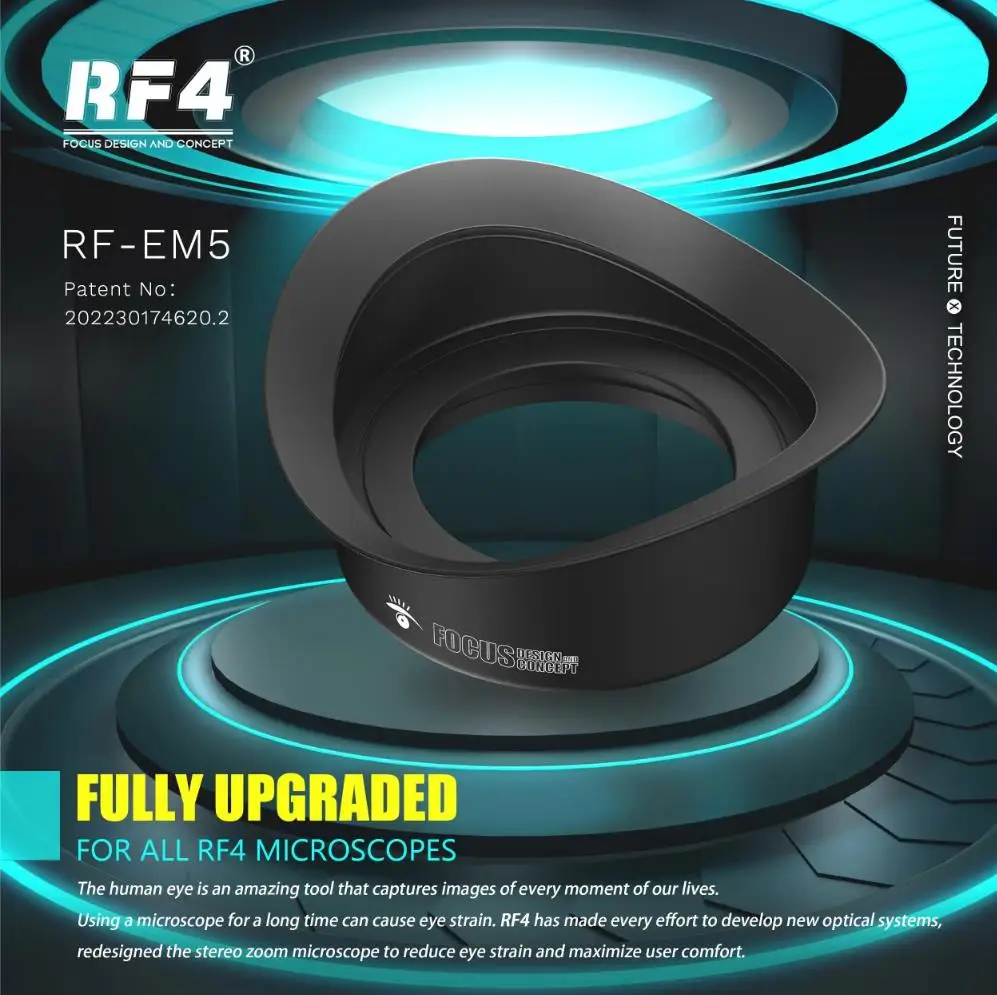
Advantages 3: Anti-leakage eye mask design
Advantages 4: Upgraded metal gear
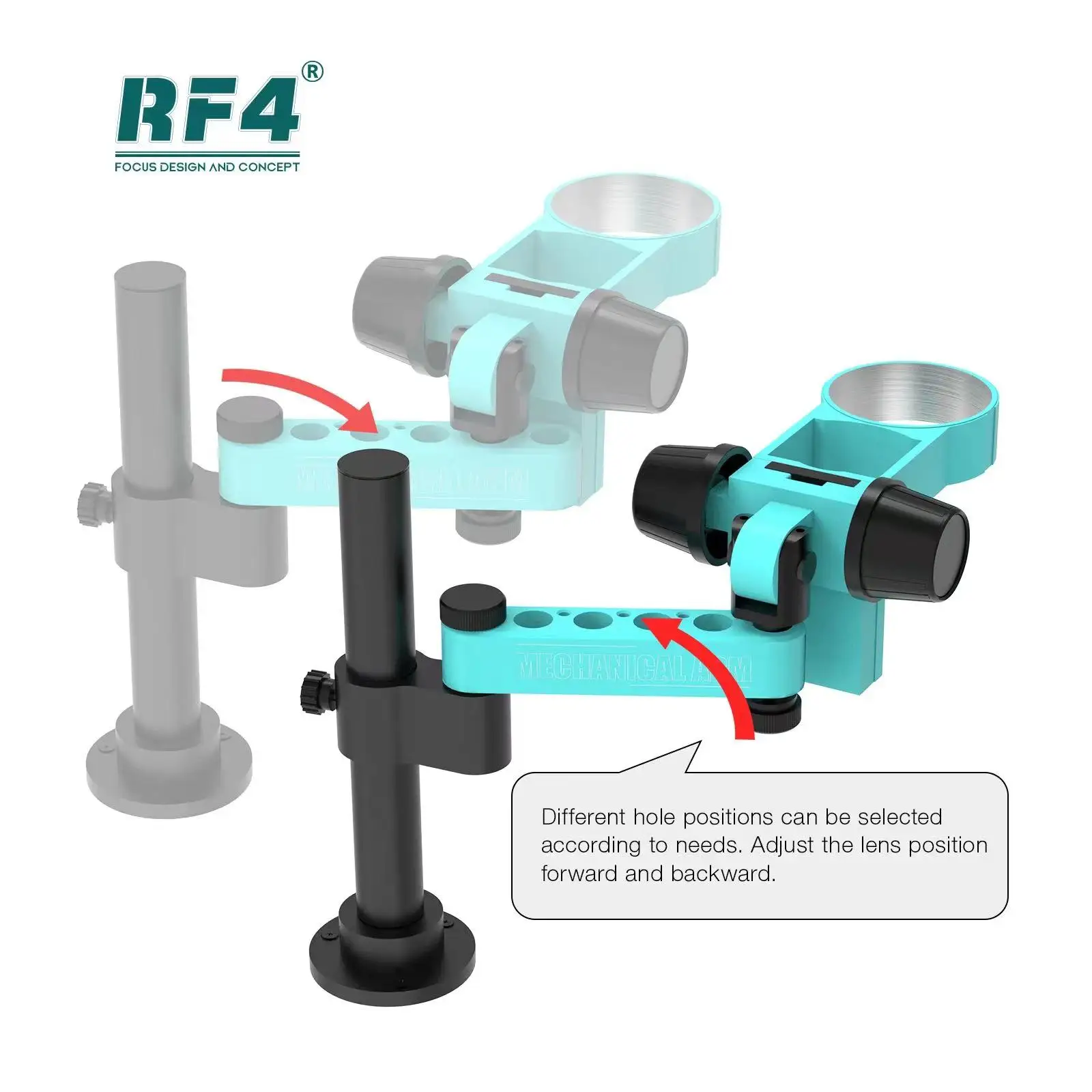
Advantages 5: can rotate 360
Advantages 6: adjust up and down
Advantages 7: Continuous synchronous zoom
Advantages 8: Upgrade the 4KC7 camera
Advantages 9: Broaden one's horizon
RF4 Stereo Trinocular Microscope 360 ° Rotation Articulating Arm Stands Large-field 4K HDMI Camera Phone Soldering PCB Repair
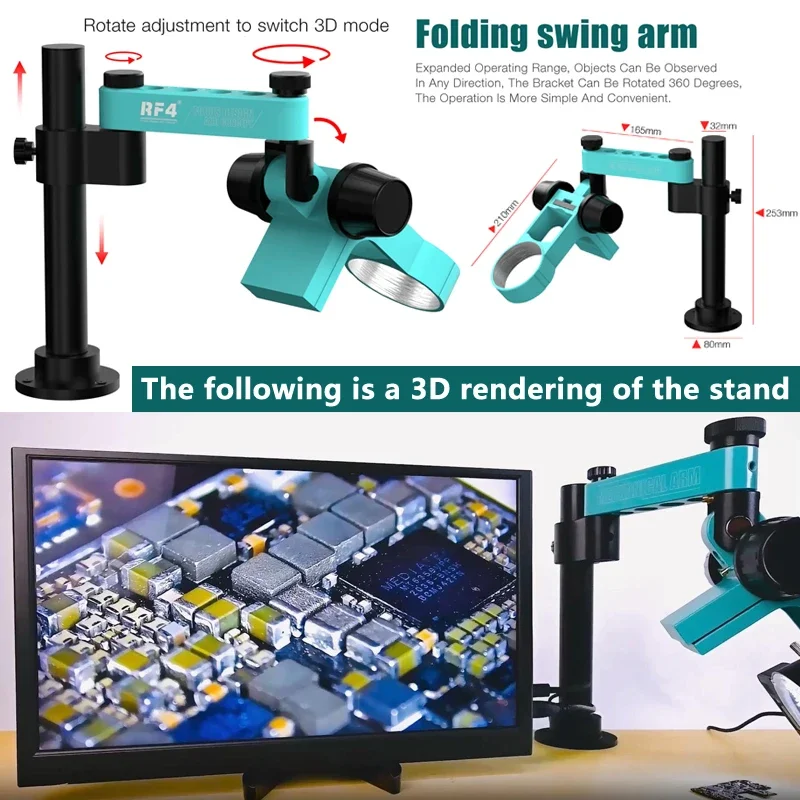
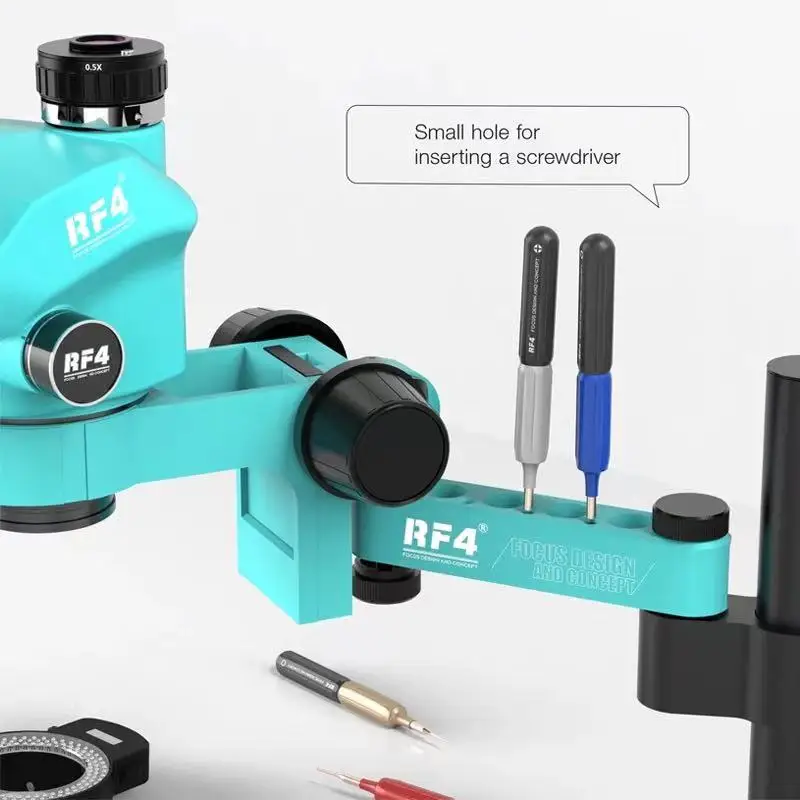
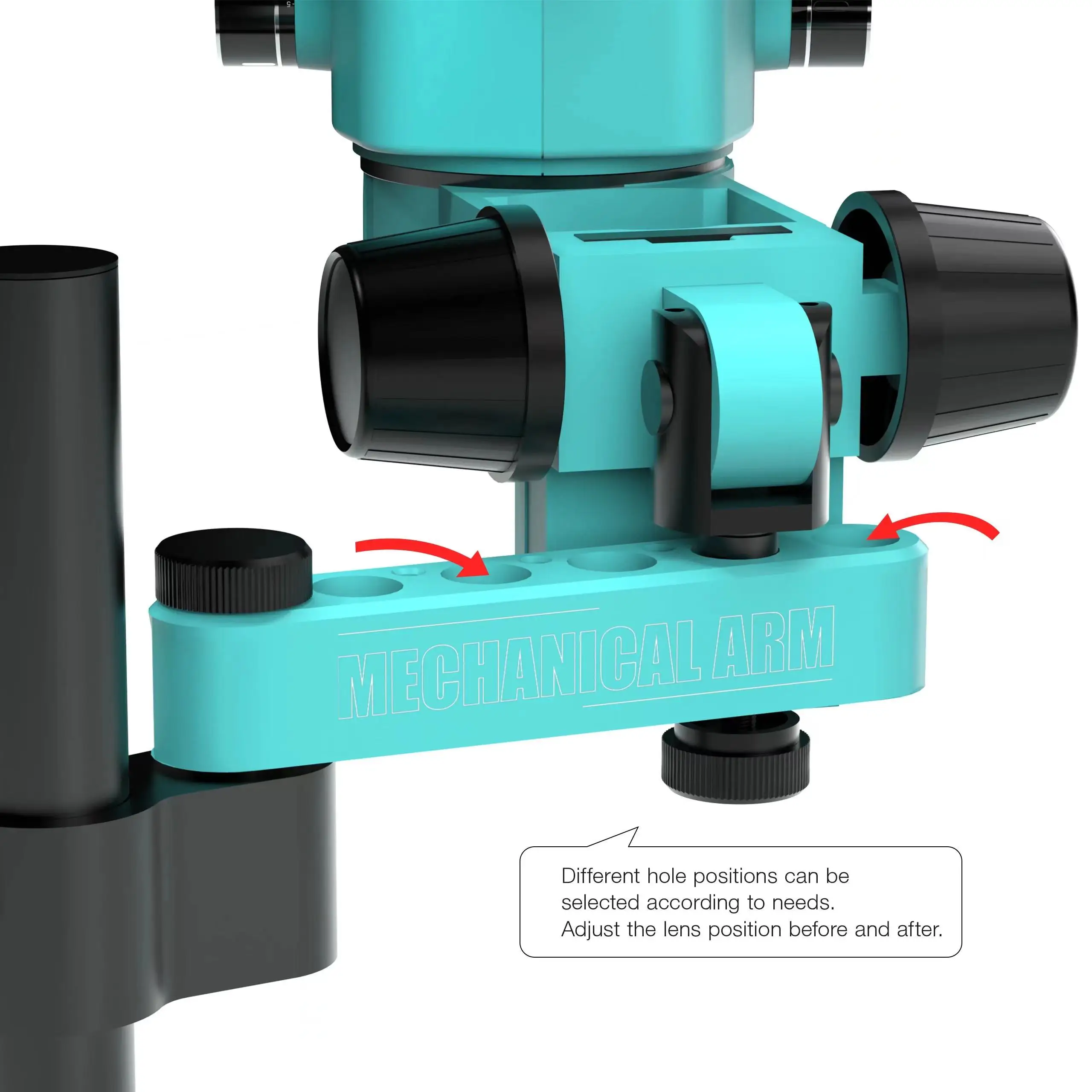
RF4 2024 Latest Microscope RF-6555PROMAX-F019 With 7 Mechanical Gear zoom Locking Knobs,360° adjustable swing arm metal universal telescopic rotation fixed lifting support F019, extended operating range, more simple and convenient work! ! !
sleeves to upgrade all microscopes in order to provide better working experience, improve working comfort and reduce fatigue of working under microscopes for long hours. The new mask is ergonomically designed to fit our eyes and prevent afterglow from interfering. After long testing by all regiments,

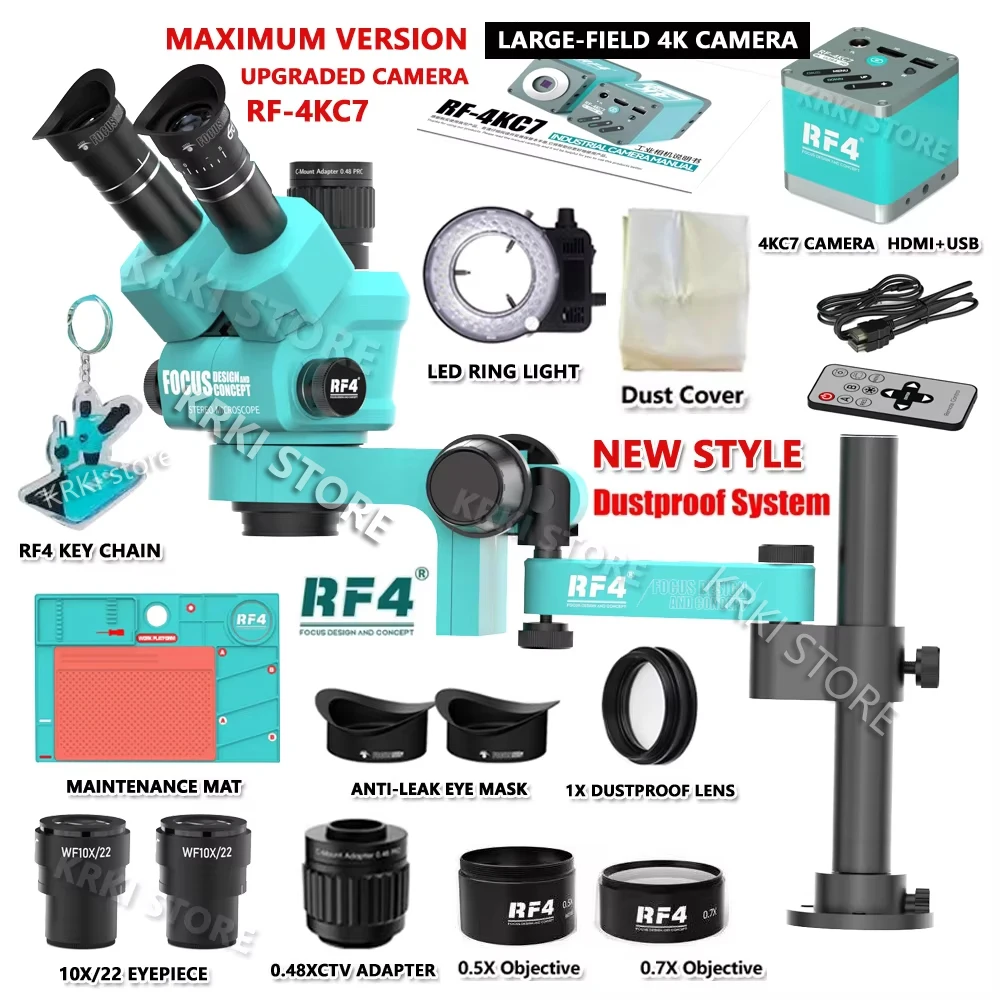
If you buy the upgrade 4KC7 package
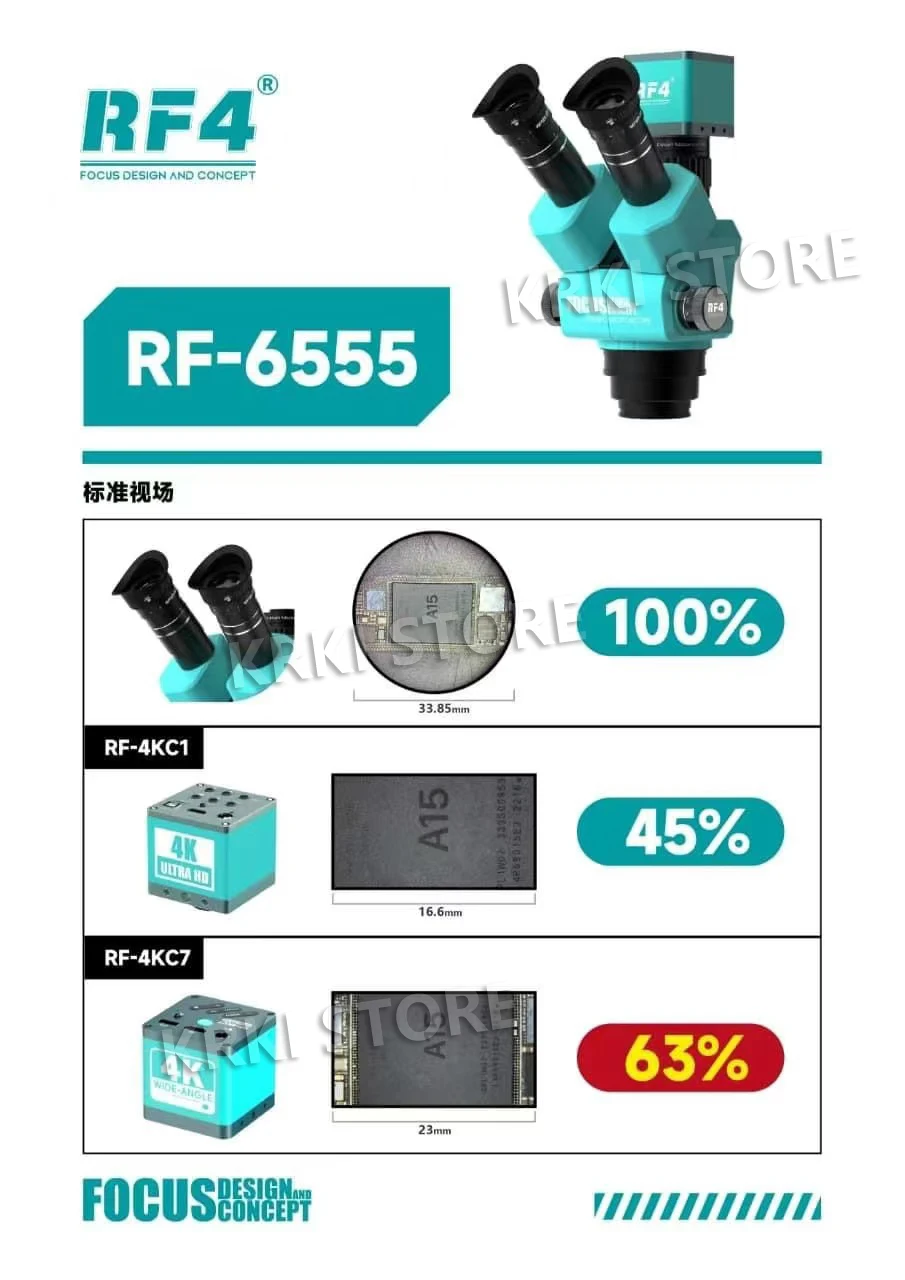
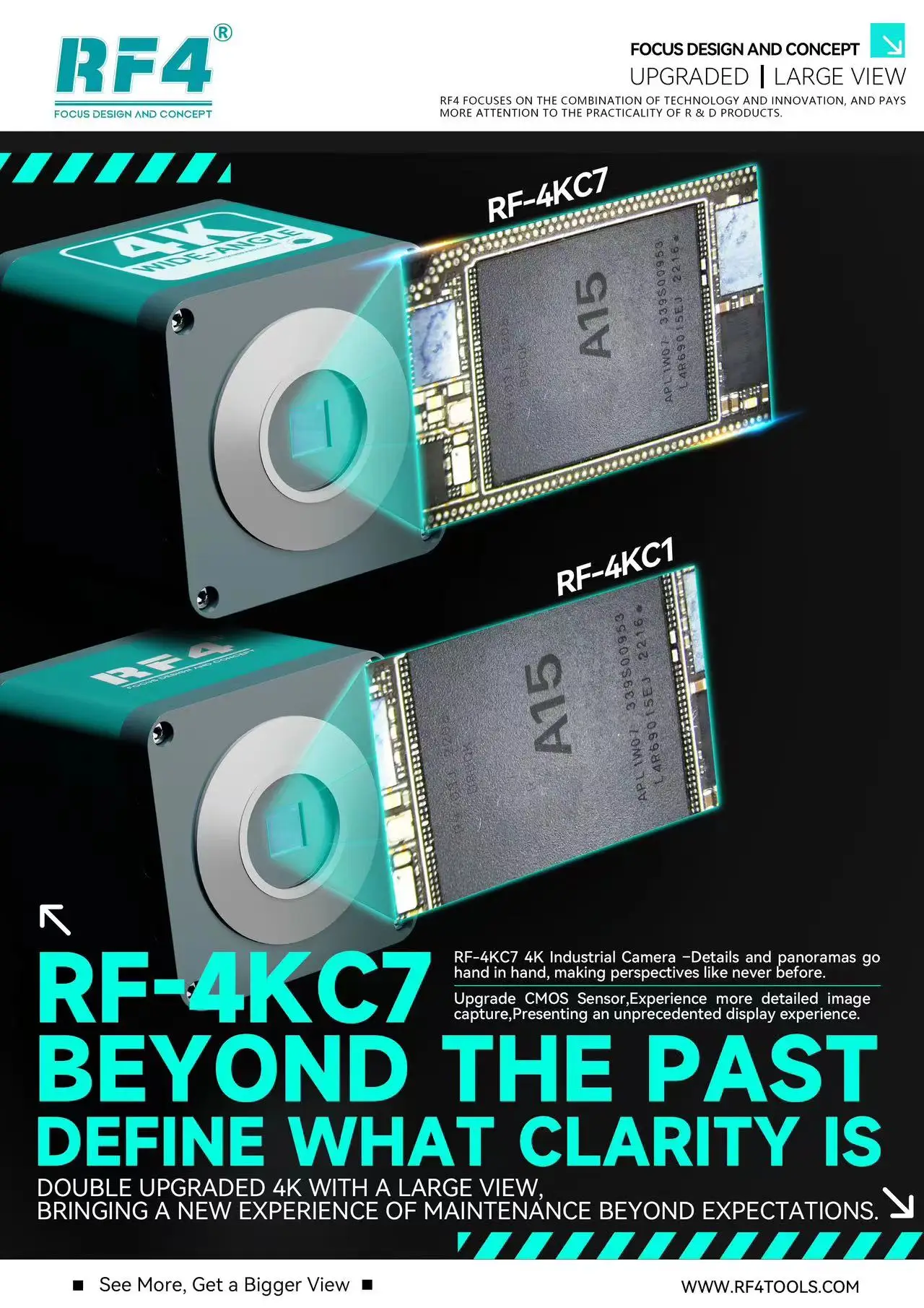
Then, the upgraded 4KC7 camera has the function of expanding the field of view, and the ordinary cameras on the market do not have this function
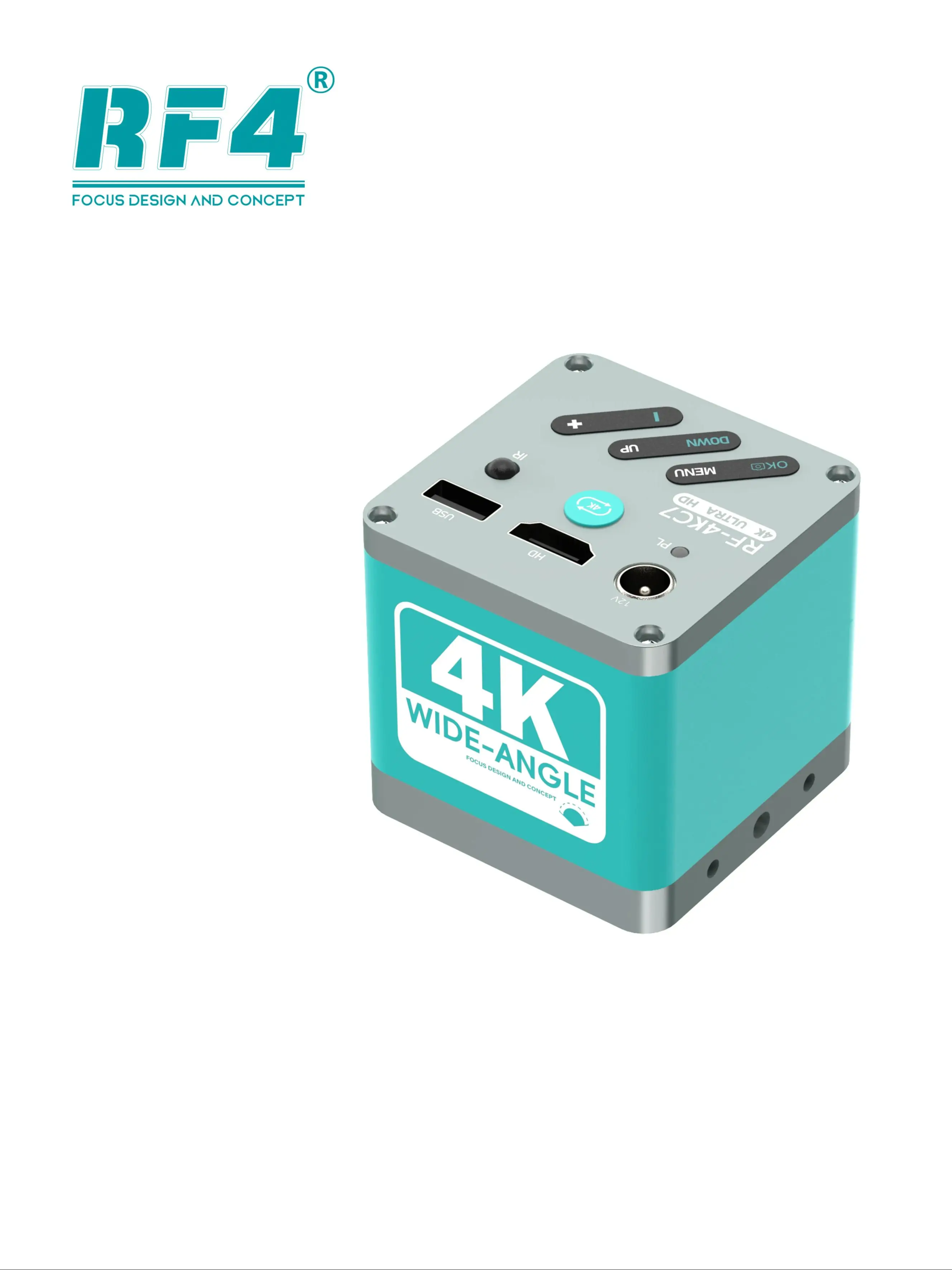
The RF-4KC7 camera not only has the function of expanding the field of view, but also can take pictures, record video, measure function, one-click white screen, cross line (color optional), language Settings and other functions
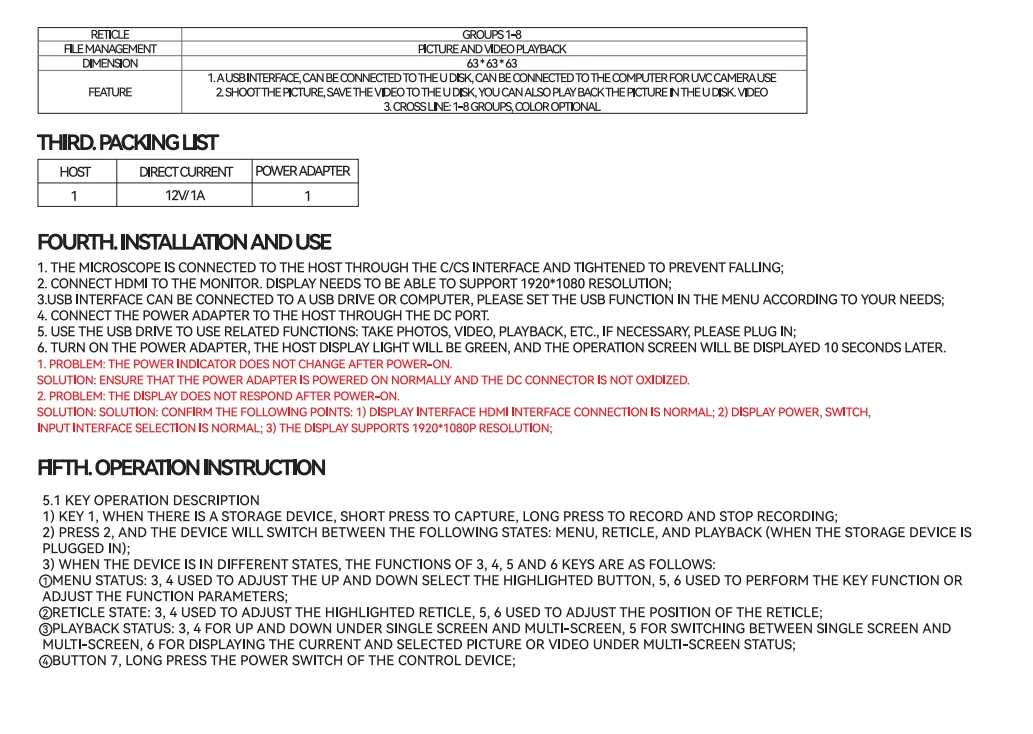
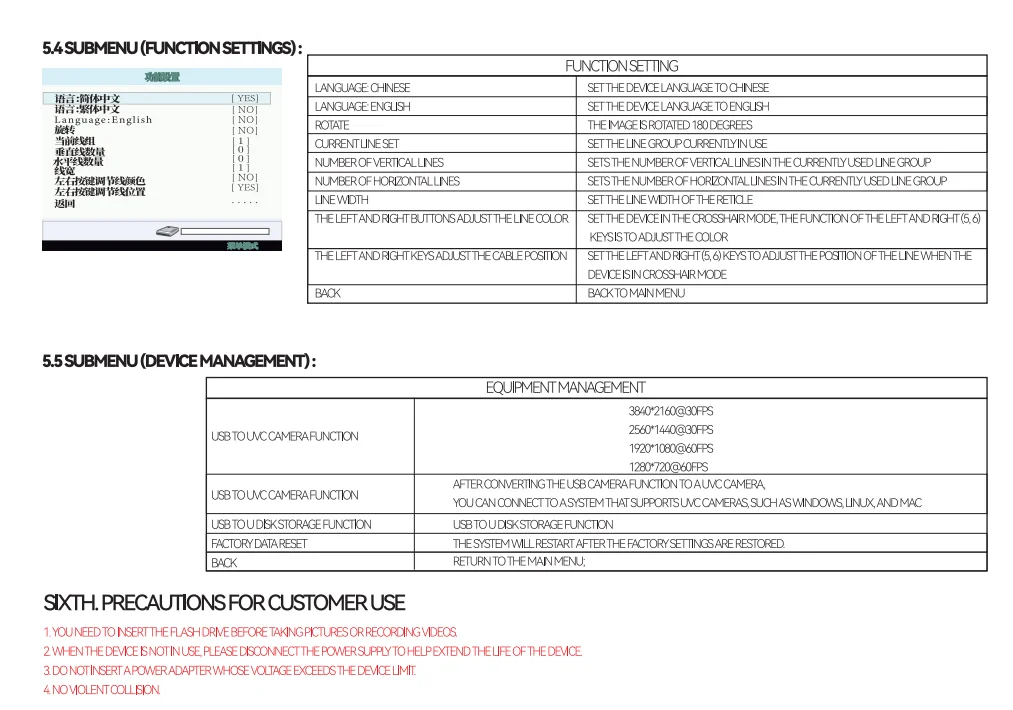
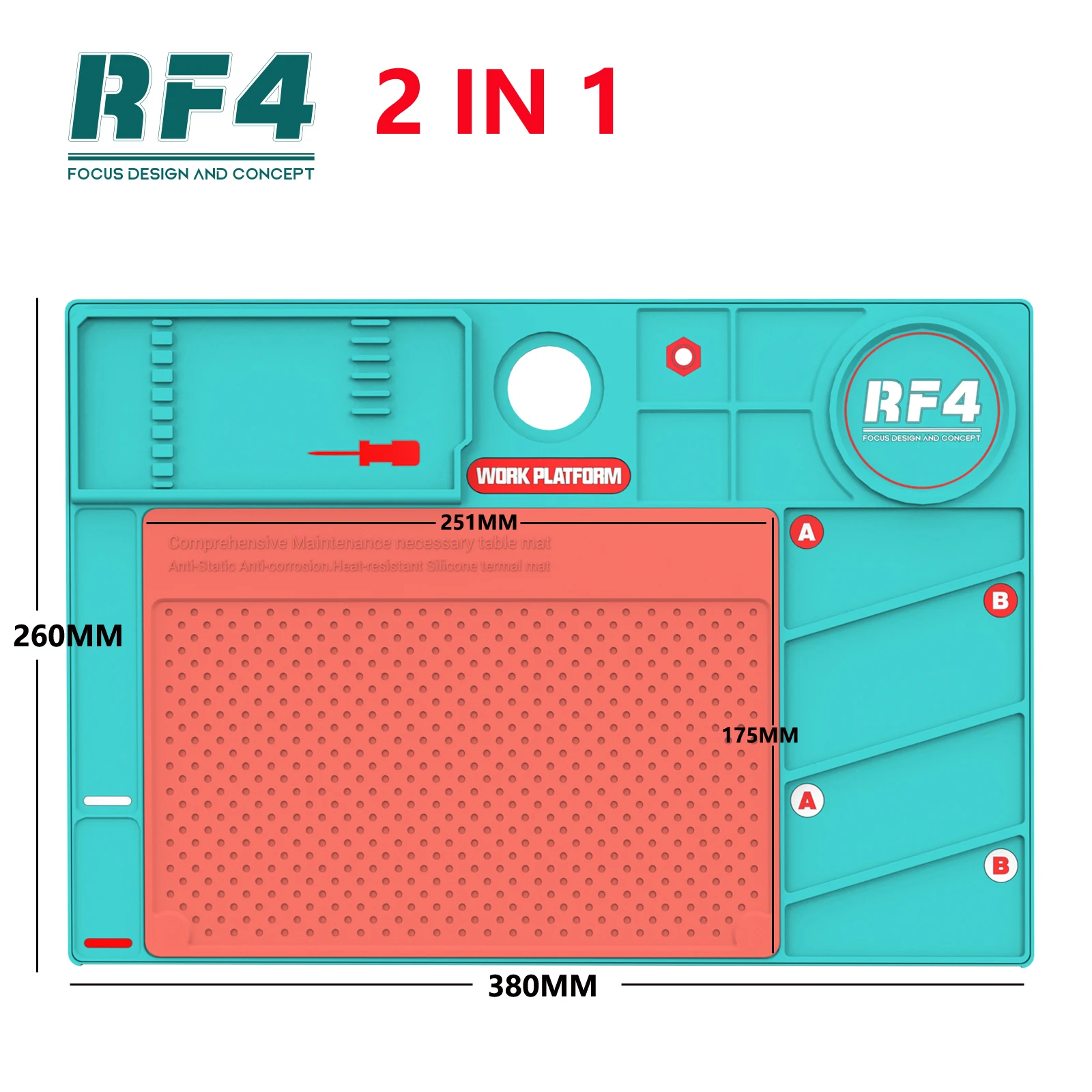
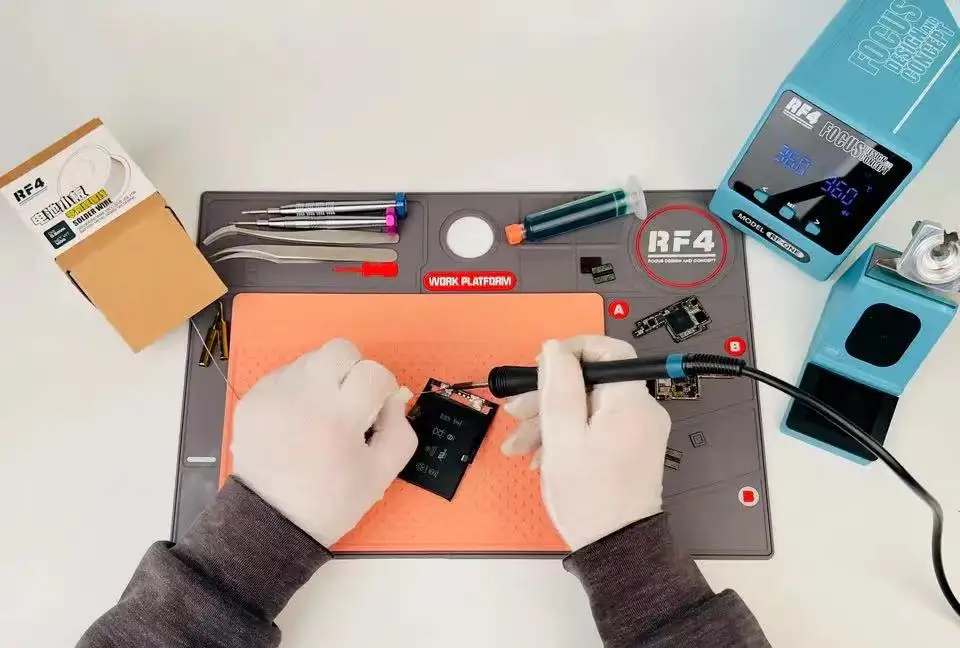
We are equipped with premium gifts: 2-in-1 high-temperature maintenance electronics







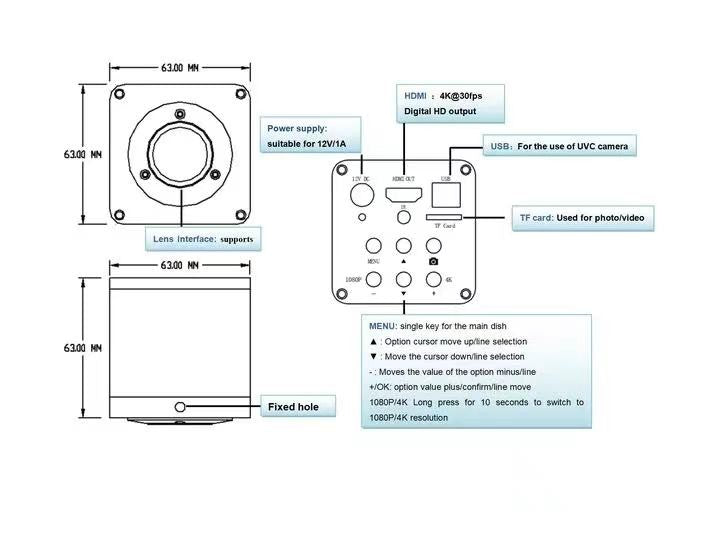
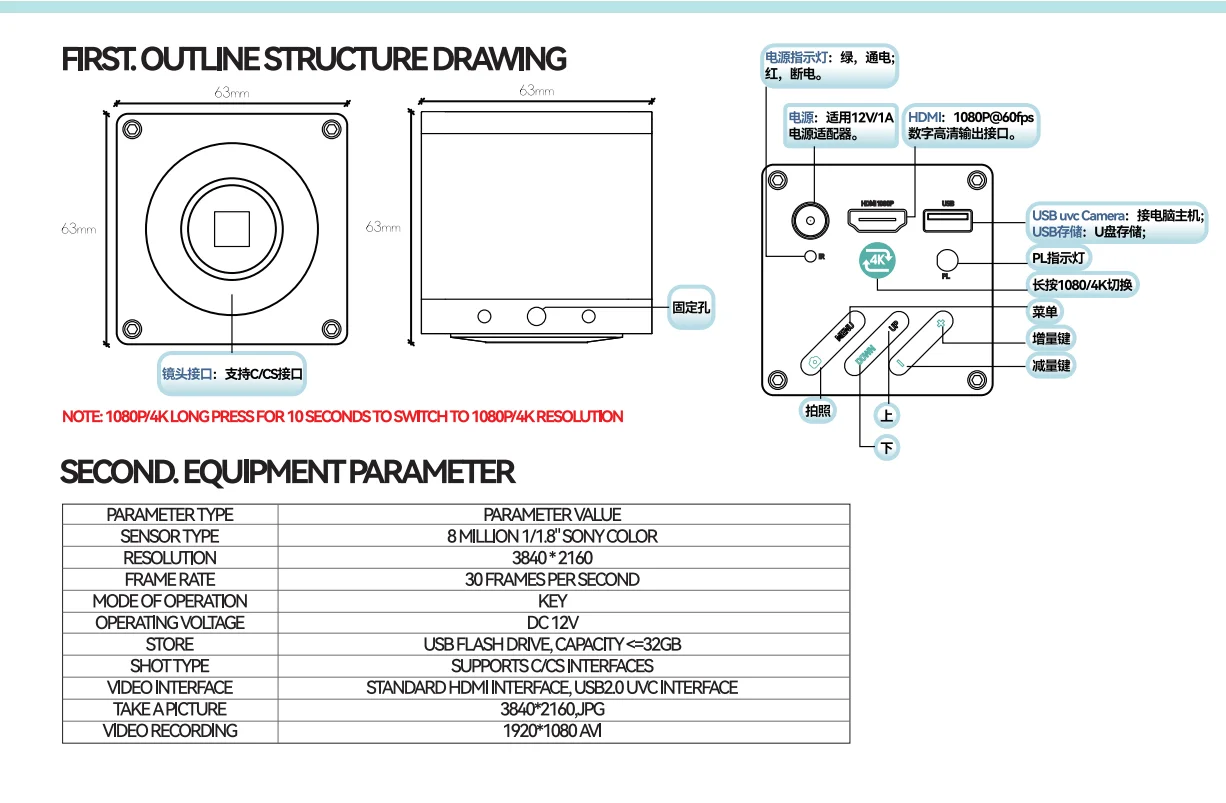
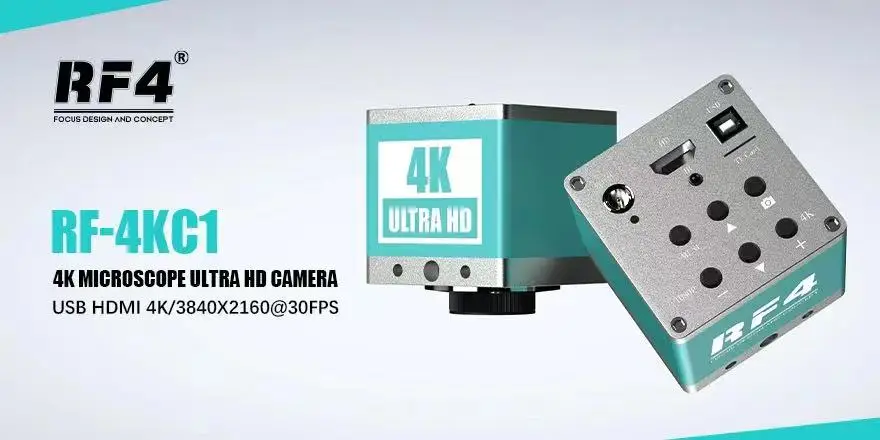
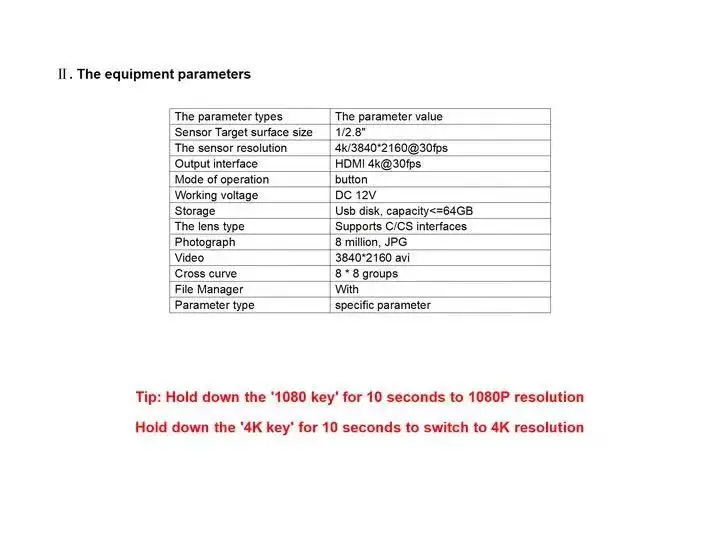
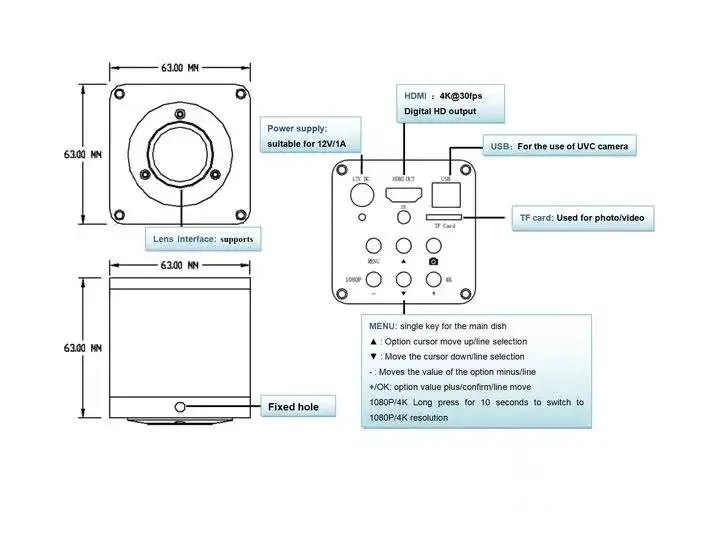
RF-4KC1 HDMI USB 1080P 60FPS 4K Camera The equipment parameters
he parameter types The parameter value
Sensor Target surface size 1/2.8"
The sensor resolution 4k/3840*2160@30fps
Output interface HDMI 4k@30fps
Mode of operation button
Working voltage DC 12V
Storage Usb disk, capacity<=64GB
The lens type Supports C/CS interfaces
Photograph 8 million, JPG
Video 3840*2160 avi
Cross curve 8 * 8 groups
File Manager With
Tip: Hold down the '1080 key' for 10 seconds to 1080P resolution
Hold down the '4K key' for 10 seconds to switch to 4K resolution
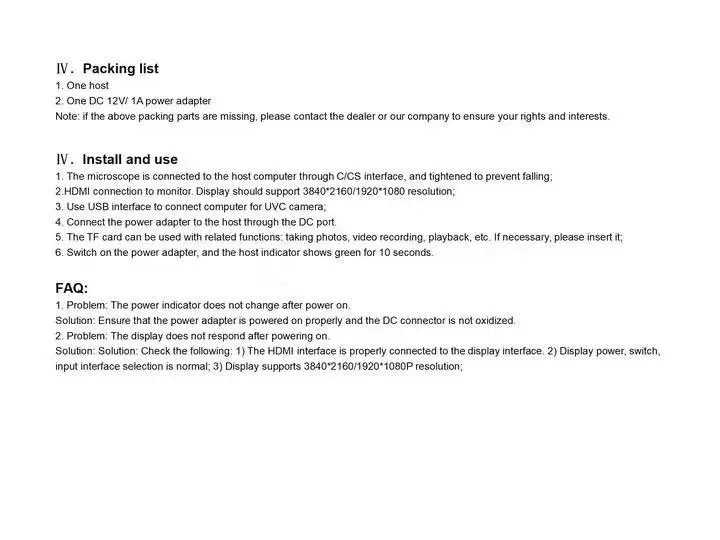
Install and use
1. The microscope is connected to the host computer through C/CS interface, and tightened to prevent falling;
2.HDMI connection to monitor. Display should support 3840*2160/1920*1080 resolution;
3. Use USB interface to connect computer for UVC camera;
4. Connect the power adapter to the host through the DC port.
5. The TF card can be used with related functions: taking photos, video recording, playback, etc. If necessary, please insert it;
6. Switch on the power adapter, and the host indicator shows green for 10 seconds.
Parameter type specific parameter
FAQ:
1. Problem: The power indicator does not change after power on.
Solution: Ensure that the power adapter is powered on properly and the DC connector is not oxidized.
2. Problem: The display does not respond after powering on.
Solution: Solution: Check the following: 1) The HDMI interface is properly connected to the display interface. 2) Display power, switch, input interface selection is normal; 3) Display supports 3840*2160/1920*1080P resolution;
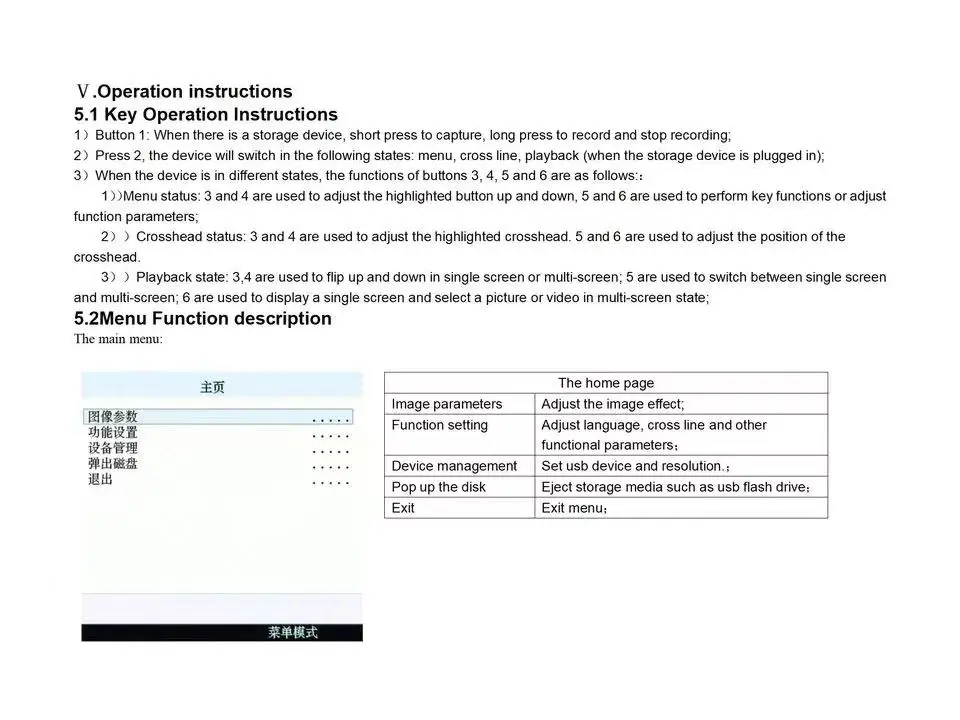
Operation instructions
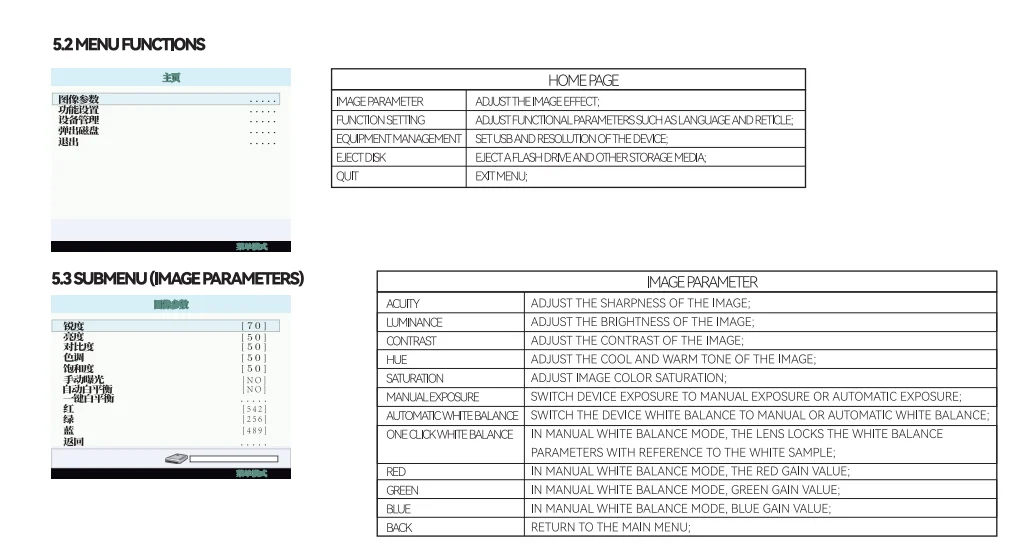
5.1 Key Operation Instructions
1)Button 1: When there is a storage device, short press to capture, long press to record and stop recording;
2)Press 2, the device will switch in the following states: menu, cross line, playback (when the storage device is plugged in);
3)When the device is in different states, the functions of buttons 3, 4, 5 and 6 are as follows::
1))Menu status: 3 and 4 are used to adjust the highlighted button up and down, 5
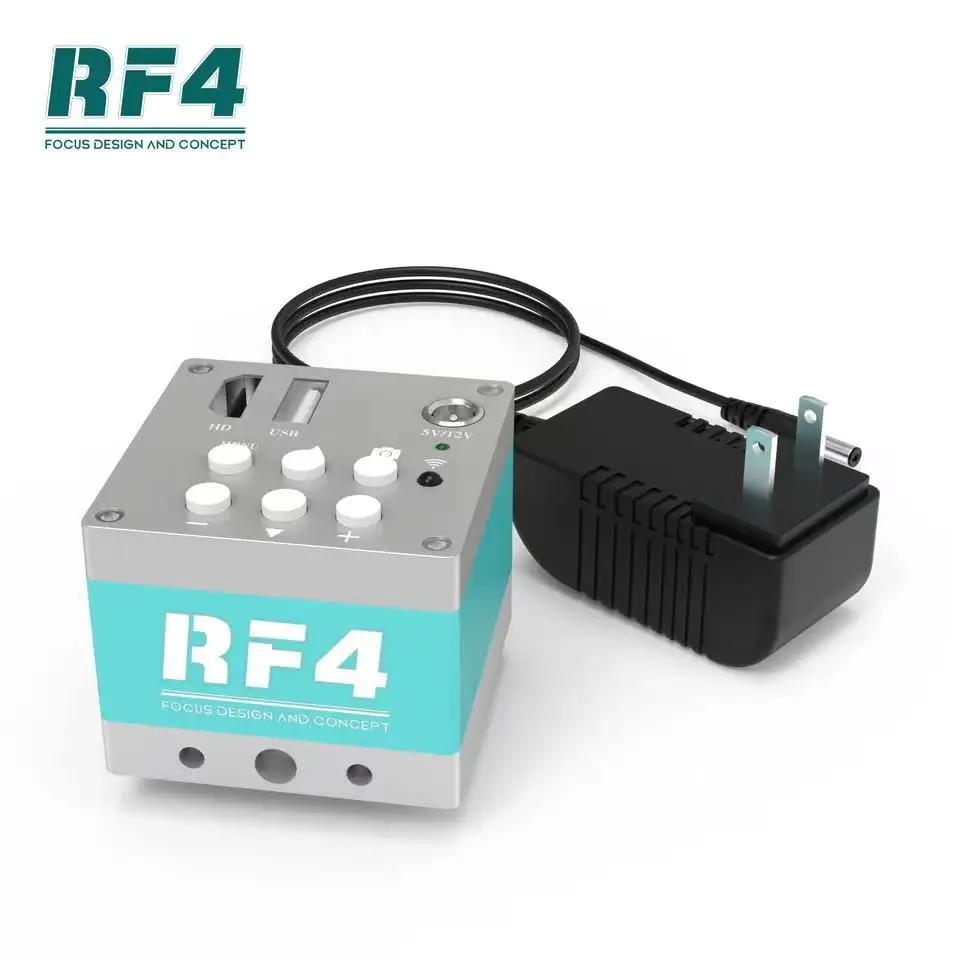
RF4 HDMI 1080P 60FPS 2K Camera
RF4 HDMI 1080P 60FPS 2K Camera Video Microscope Camera Industrial Electronic Digital Observing IC Welding Repair
Function description of 2K microscope camera:
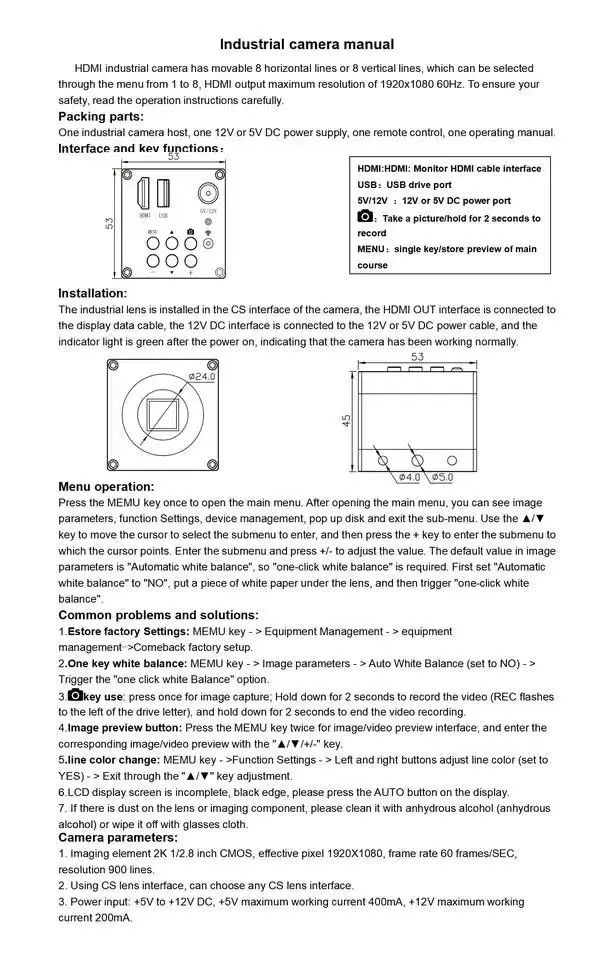
The HDMI industrial camera has 8 movable horizontal lines or 8 vertical lines, of which 1 to 8 can be selected through the menu. The maximum resolution of HDMI output is 1920x1080 60Hz. To ensure safety, please read the operating instructions in detail.
Packaging parts:
One industrial camera host, one 12V or 5V DC power supply, one remote controller, and one operation manual.
Interface and key functions:
Installation:
The industrial lens is installed on the CS interface of the camera, the HDMI OUT interface is connected to the data line of the display, and the 12V DC interface is connected to the 12V or 5V DC power line. The indicator light is green after power on, indicating that the camera has worked normally.
Menu operation:
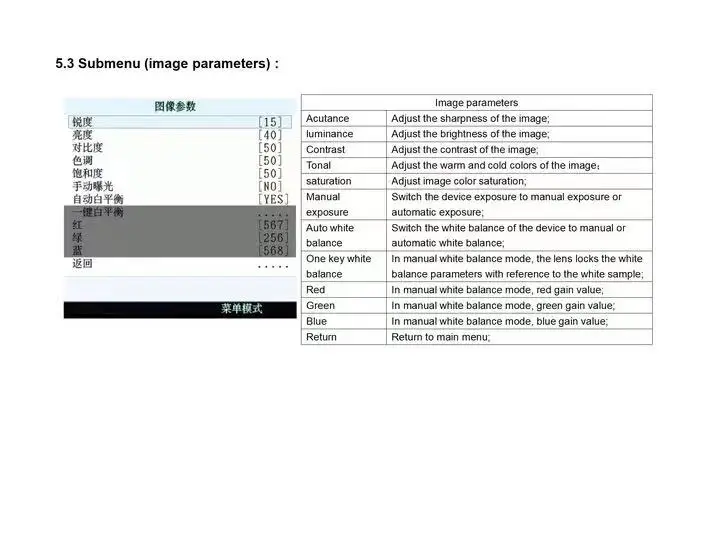
Press the MEMU key once to open the main menu. After opening the main menu, you can see the image parameters, function settings, device management, pop-up disk, and exit the submenu. Use the ▲/▼ keys to move the cursor to select the submenu to enter, and then press the+key to enter the submenu pointed by the cursor. After entering the submenu, use the "+/-" key to adjust the value. The default value in the image parameters is "automatic white balance", and "one button white balance" is required. First set "automatic white balance" to "NO", place a piece of white paper under the lens, and then trigger the "one button white balance" item.
Common problems and solutions:
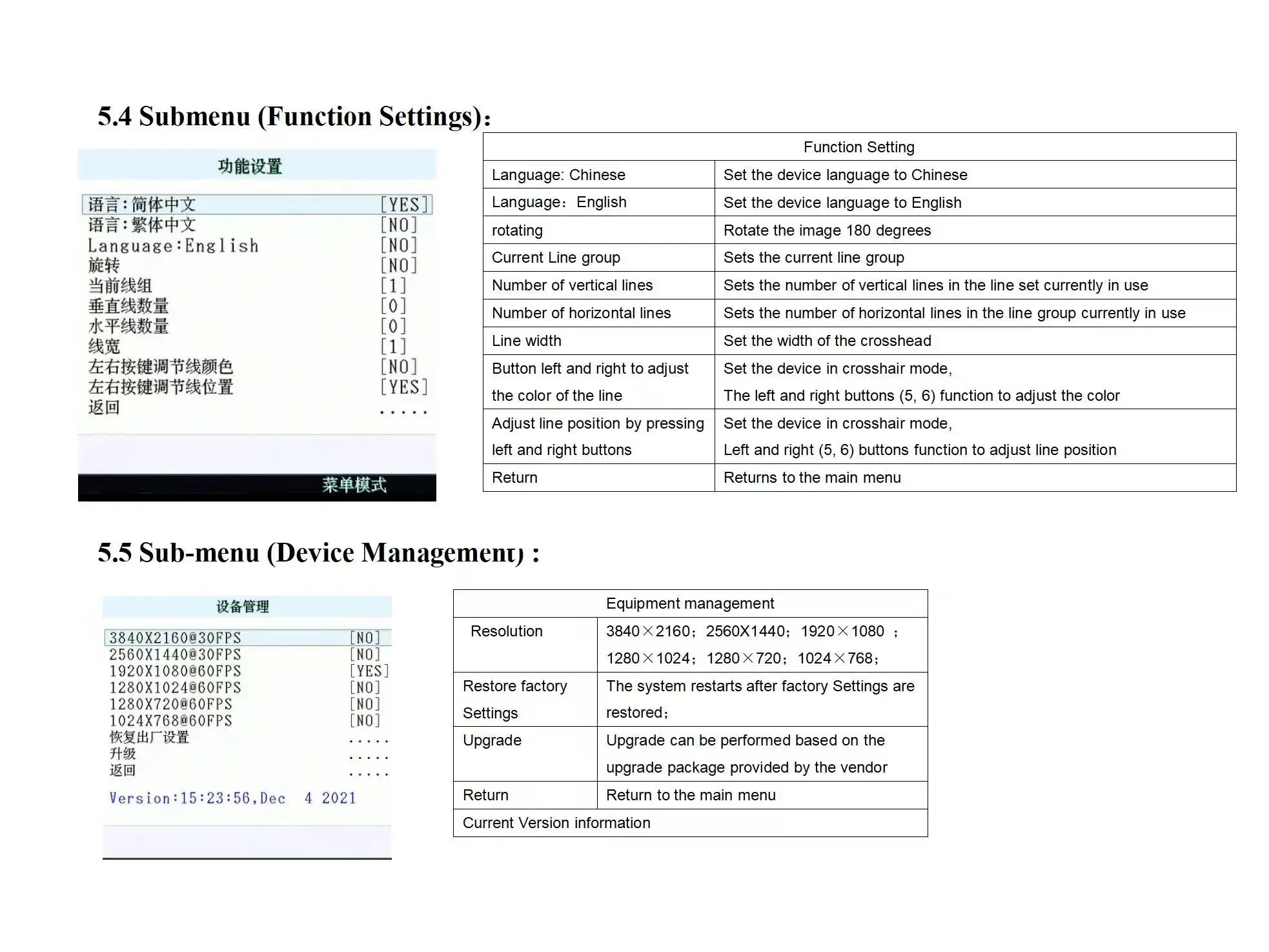
1. Restore factory settings: MEMU key ->equipment management ->restore factory settings.
2. One click white balance: MEMU key ->image parameters ->automatic white balance (set to NO) ->trigger the "One click white balance" option.
3. Key use: press once to capture the image; Long press for 2 seconds to record (REC flashes on the left of the drive letter), and long press for 2 seconds to end recording.
4. Picture preview key: press the MEMU key twice to enter the picture